Setup Notification Methods

Overview

We offer different types of notification methods for you to get notified when an alert or trade triggers.

These are the current supported notification methods email, text, voice, webhook, slack, telegram-user, telegram-group, telegram-channel, discord, trade-email, trade-text, trade-voice

Below we will go through how you can setup each of these notification methods so you can configure and verify before you can start receiving your alert and trade notifications.
Email

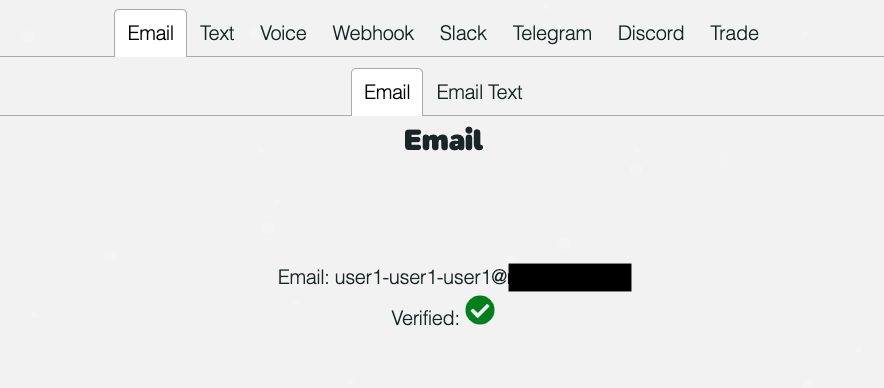
Email is automatically setup for you when you create your PAGEROUS account. We will use your account email for sending Email notifications

Go to Settings page and click the Notifications tab and then click the Email tab

email notifications

Text

Text is the notificaiton method for you to receive your notifications via SMS text messages

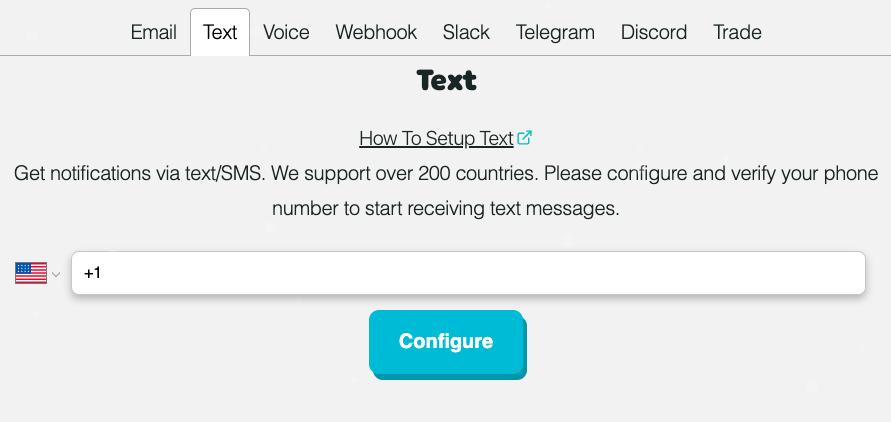
Go to Settings page and click the Notifications tab and then click the Text tab

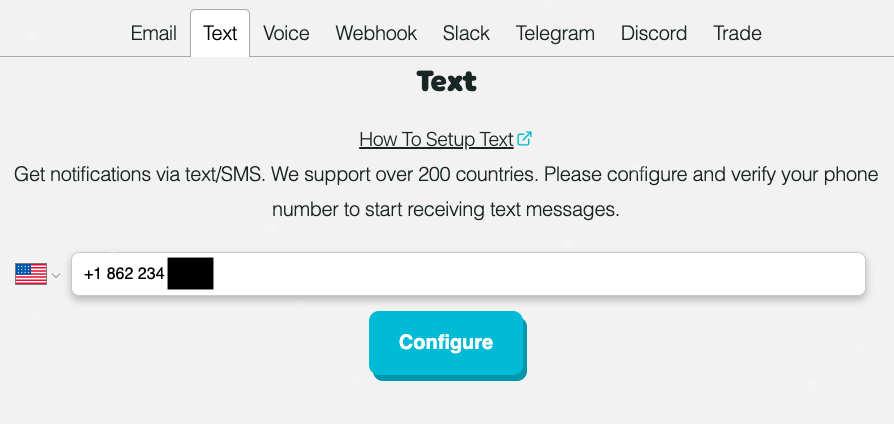
text notifications
text notifications

Enter your phone number, and click Configure

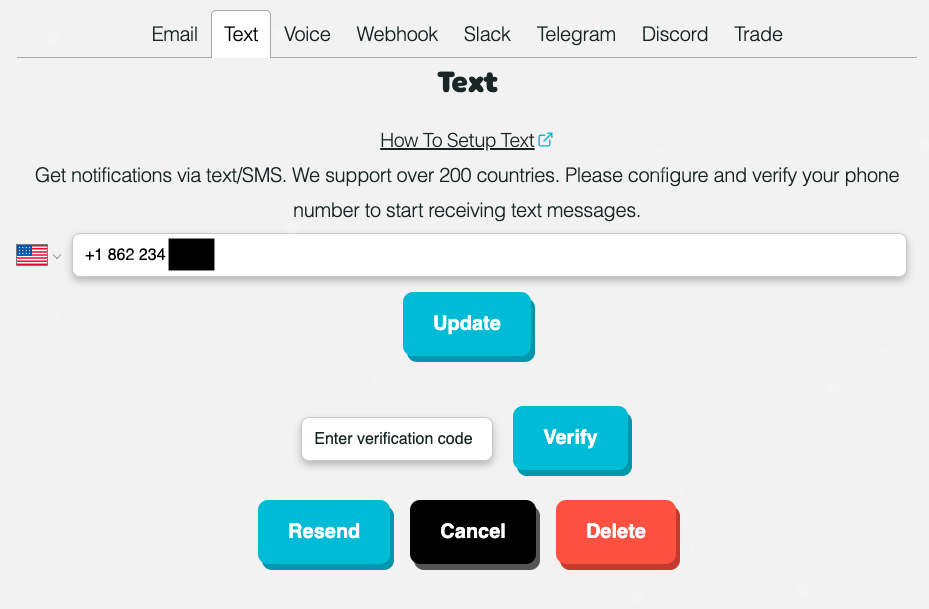
text notifications

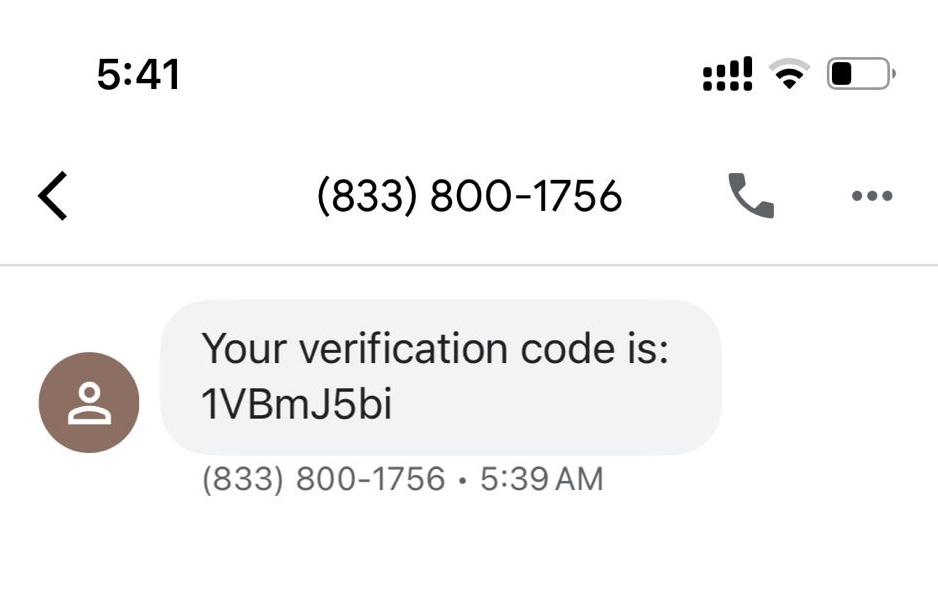
We will send you verification code to the phone number that you will enter on the next form to then verify

text notifications

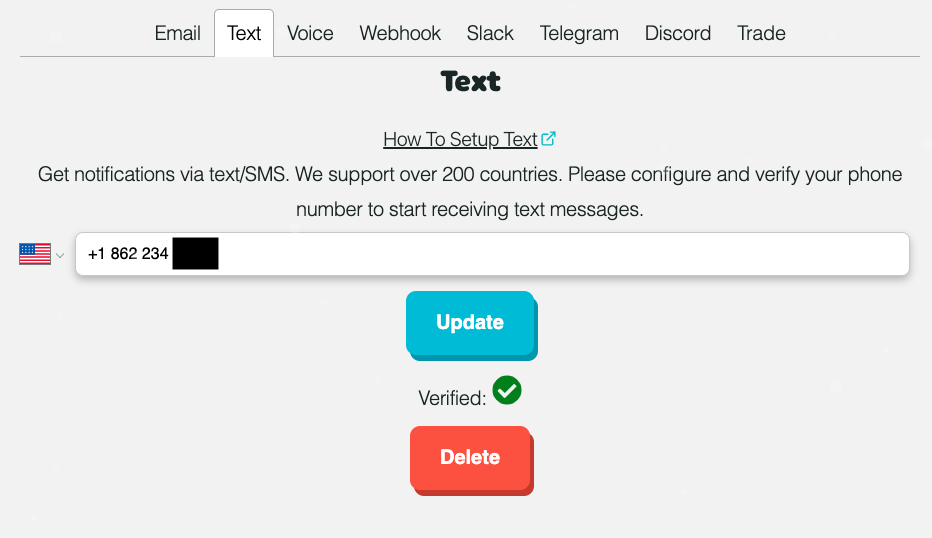
Upon successful verification, you will then be verified to receive notifications via your phone number

text notifications

Voice

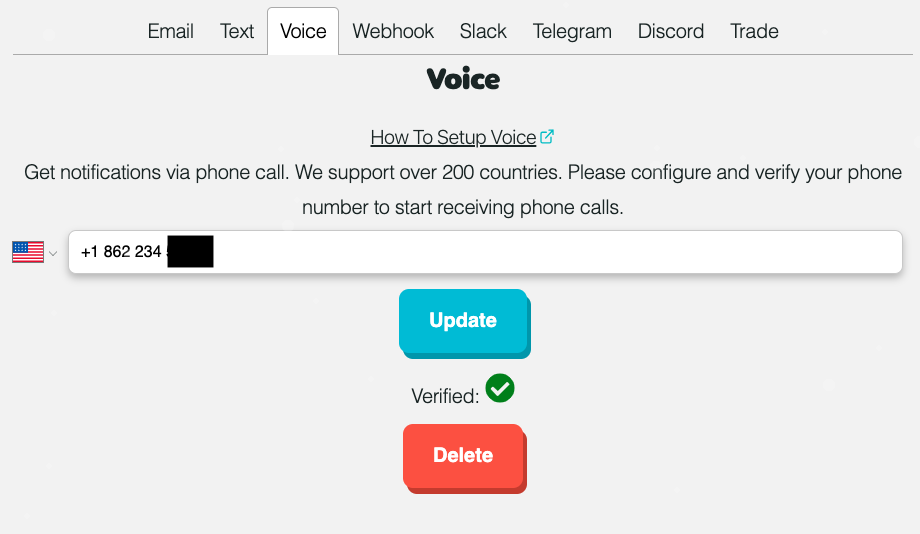
Voice is the notificaiton method for you to receive your notifications via phone calls

Follow the same steps to setup Text above, to setup Voice. When you setup and verify any of Text, Voice or Trade, all the three will be verified

voice notifications

Webhook

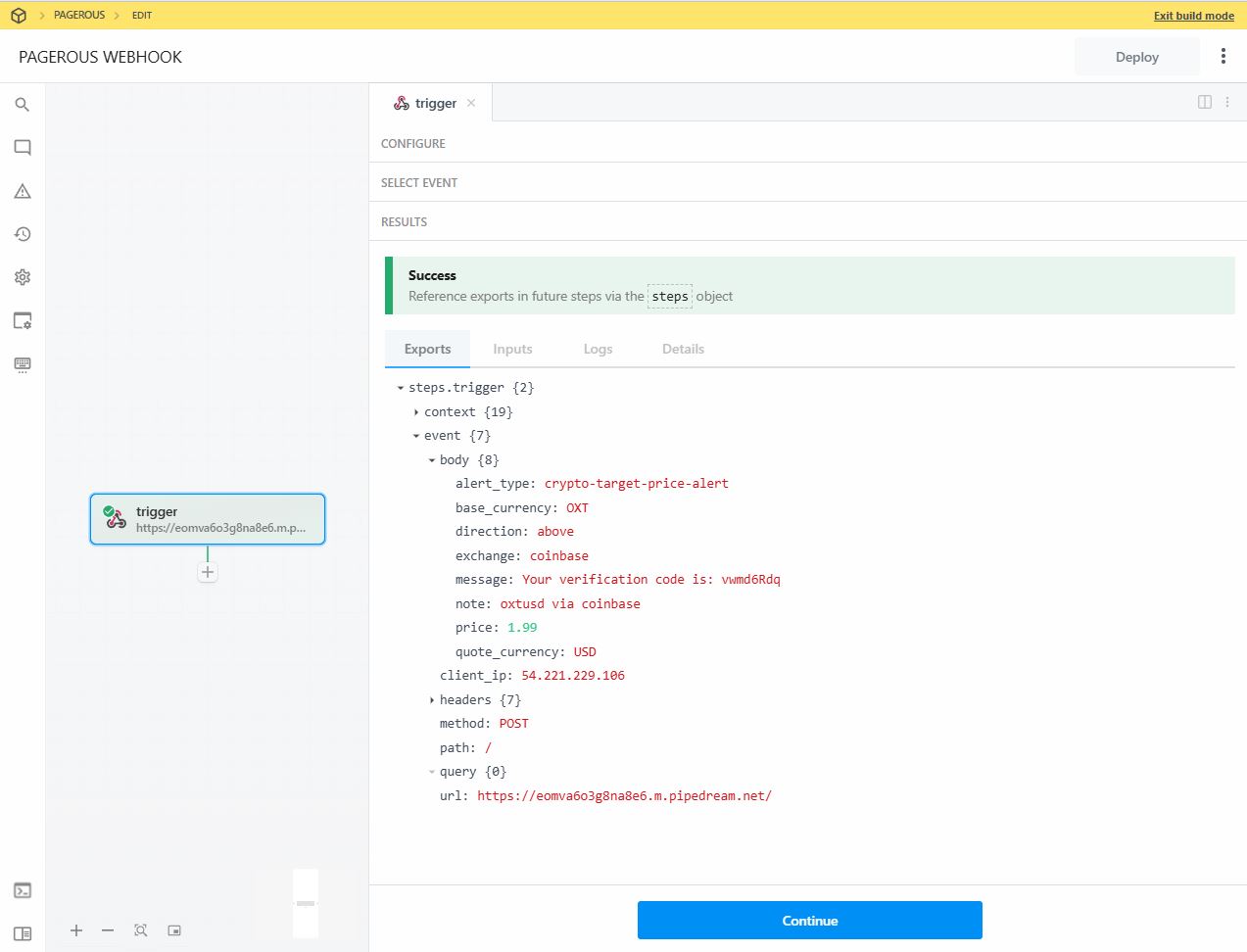
You can test webhook with https://pipedream.com/

We send two headers when sending webhook notifications.

  • X-Sent-Via: https://pagerous.com
  • X-Webhook-Secret: 5ez21t0pa2wumE3g
where "5ez21t0pa2wumE3g" represents the webhook secret

secured webhook notifications

Slack

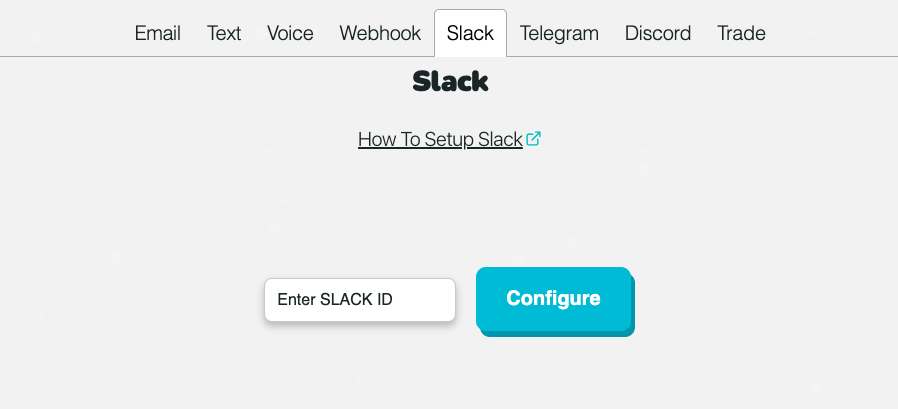
Go to Settings page and click the Notifications tab and then click the Slack tab

slack notifications

Enter your slack channel endpoint, and click Configure

We will send you verification code to the slack channel that you will enter on the next form to then verify. Upon successful verification, you will then be verified to receive notifications via your slack channel

Telegram

We support sending notifications to Telegram User, Telegram Group and Telegram Channel

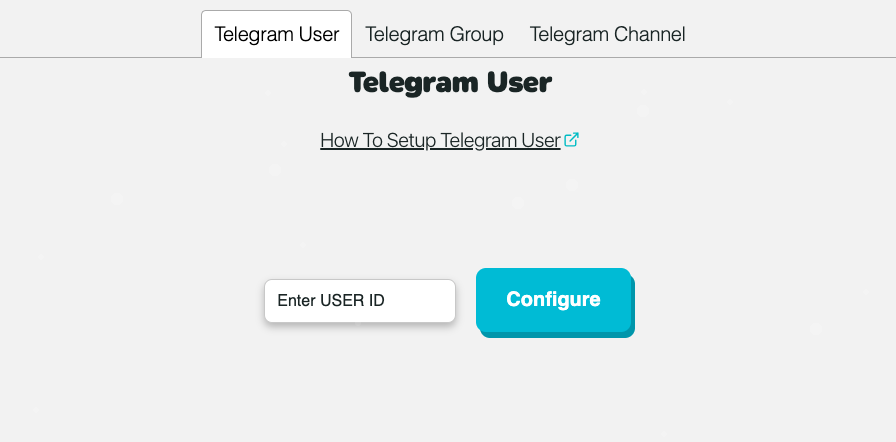
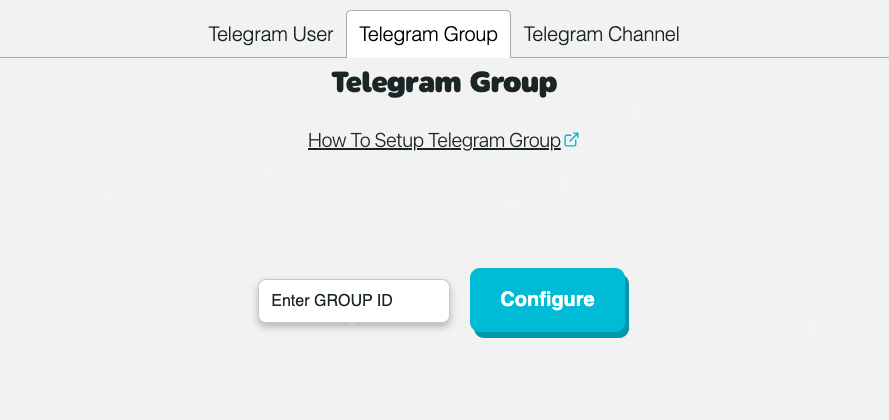
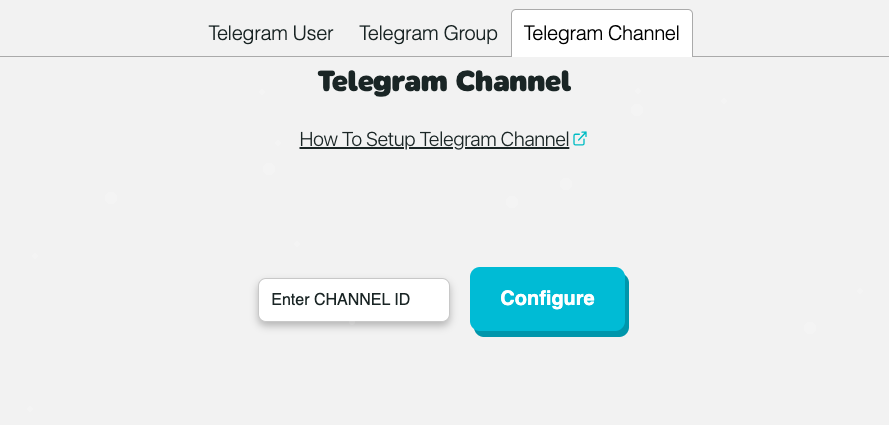
Go to Settings page and click the Notifications tab and then click the Telegram tab. Then you can click on any of Telegram User, Telegram Group or Telegram Channel to configure and verify

Telegram-User

telegram user notifications

Telegram-Group

telegram user notifications

Telegram-Channel

telegram user notifications

Enter your telegram endpoint, and click Configure

We will send you verification code to the telegram that you will enter on the next form to then verify. Upon successful verification, you will then be verified to receive notifications via your telegram

Discord

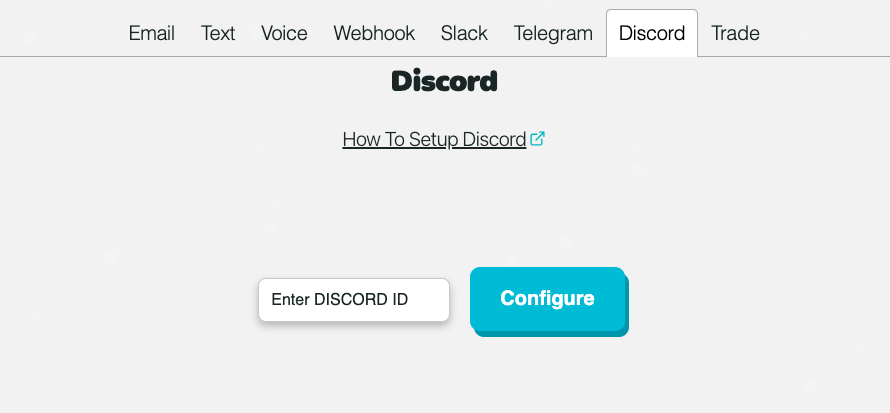
Go to Settings page and click the Notifications tab and then click the Discord tab

discord notifications

Enter your discord endpoint, and click Configure

We will send you verification code to the discord that you will enter on the next form to then verify. Upon successful verification, you will then be verified to receive notifications via your discord

Trade

Trade notification methods is how users are able to approve their automated trade. When an alert is created to trigger an automated trade, you will have to select between Trade-Email, Trade-Text and Trade-Voice to approve the trade.

Trade-Email

Trade Email uses the same email used for setting up the Email notification method. When you configure and verify Email, you also will have Trade-Email configured and verified.

Trade-Text

Trade Text uses the same phone number used for setting up the Text notification method. When you configure and verify Text, you also will have Trade-Text configured and verified.

Trade-Voice

Trade Voice uses the same phone number used for setting up the Voice notification method. When you configure and verify Voice, you also will have Trade-Voice configured and verified.